---------------------------------------------------
【Voltage Compatibility】
Our products are selected to support international voltage ranges (e.g. 100–240V).
However, please make sure your local voltage is compatible before use, as incorrect voltage may still cause malfunction.
【Plug Type】
Our products use Japanese plug types (A or B type).
Please use a conversion adapter if necessary.
【Important Note on Transformers and Adapters】
A transformer adjusts voltage to match your device’s requirements.
A conversion adapter only changes the plug shape and does not adjust voltage.
Using only a conversion adapter without a transformer may result in damage to the product.
【Liability】
We are not responsible for malfunctions or damages caused by improper use, such as operating the product without appropriate voltage or equipment.
---------------------------------------------------
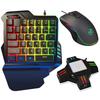
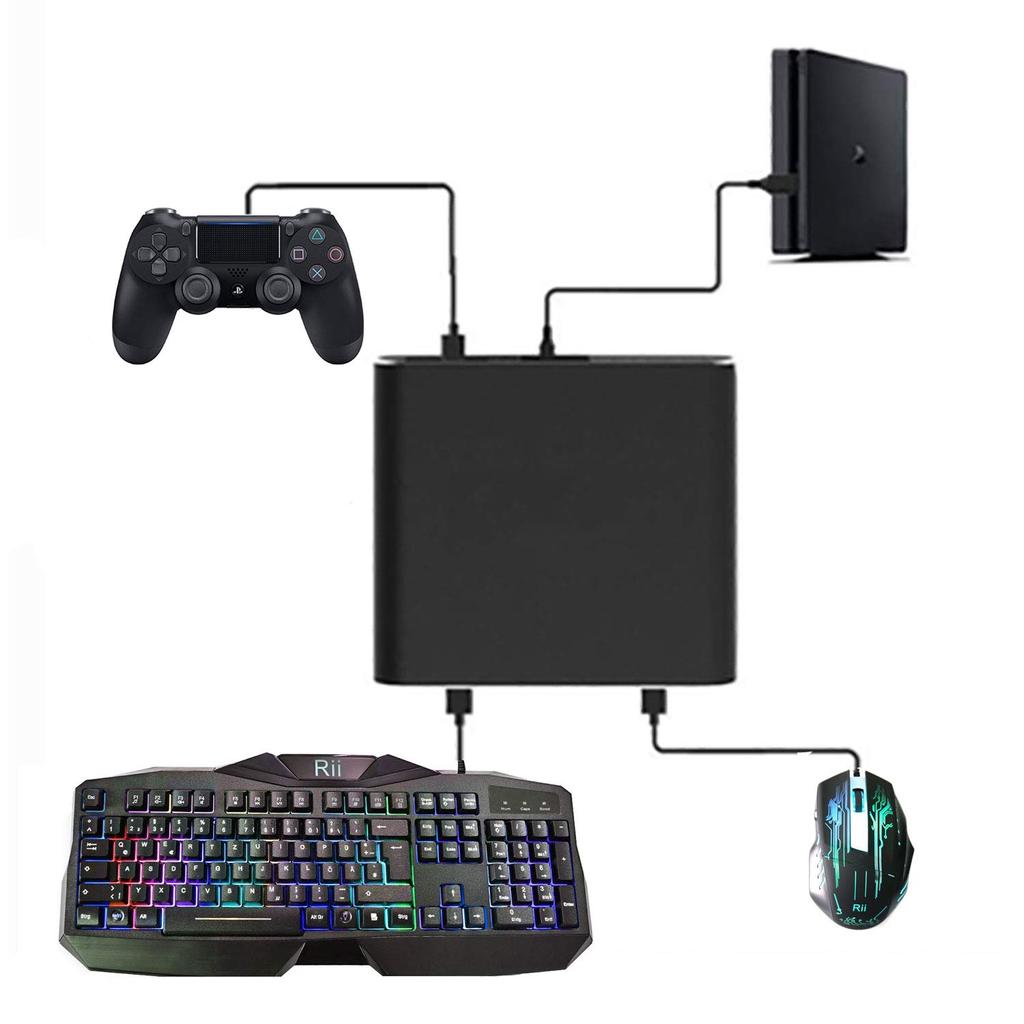
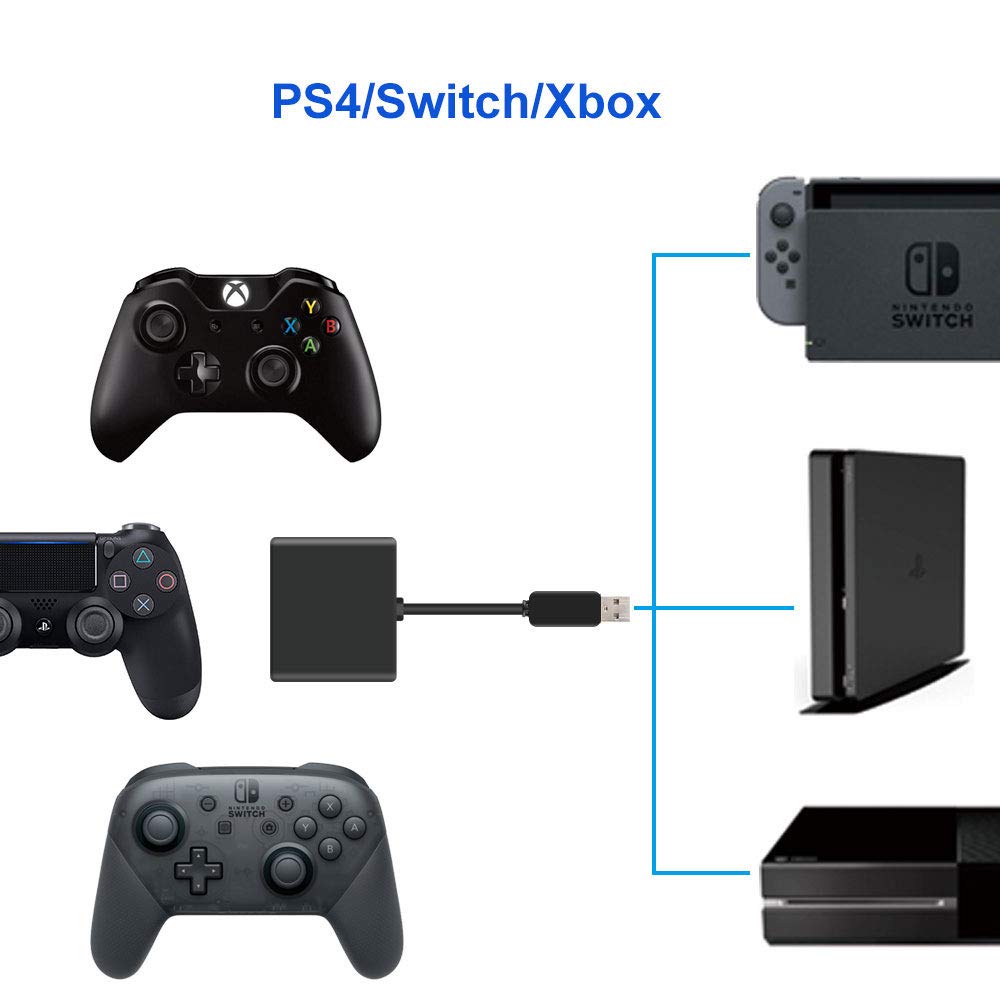
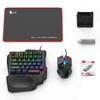
Compatible models: Switch, PS4, PS4 Slim, PS4 Pro, Xbox One, Xbox One S, and Xbox One X. No driver required for Switch systems. Genuine controller drivers are required for PS4 and Xbox One systems.
Compact size: Ultra-compact keyboard and mouse adapter. Slim and easy to store and carry.
"Compatible equipment": Compatible with both wired and 2.4G keyboards and mice
"Adjustable mouse sensitivity": Press F3 to slow down the speed, or F4 to speed up. Move the scope at your preferred speed.
You can use your existing keyboard and mouse, and enjoy the familiar gameplay experience. Note: The package contains only the adapter; the keyboard and mouse are not included.
Product specifications:
Dimensions: Width 5.9cm, Depth 1.2cm, Height 5.2cm
Mass: Approx. 35g
Color: Black
Ports: 3x USB ports
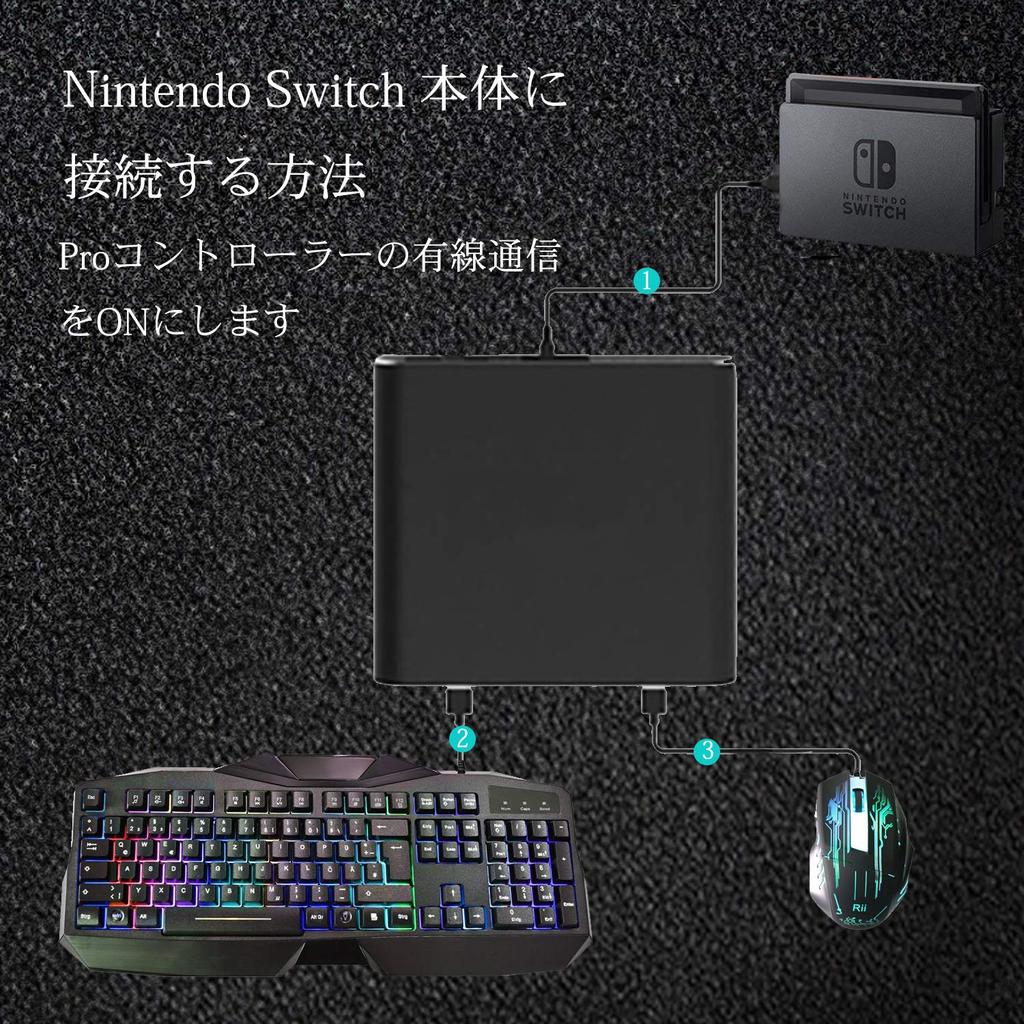
When you connect the Switch console for the first time
1. Change your console settings
Settings → Controllers and Sensors → Turn on wired communication for the Pro Controller 2. Connect the keyboard and mouse to the adapter
3. Connect the adapter to the Switch console
4. The adapter will pair automatically
5. After pairing is complete, the pairing indicator light will turn on. You can now enjoy keyboard and mouse functionality with your Switch.
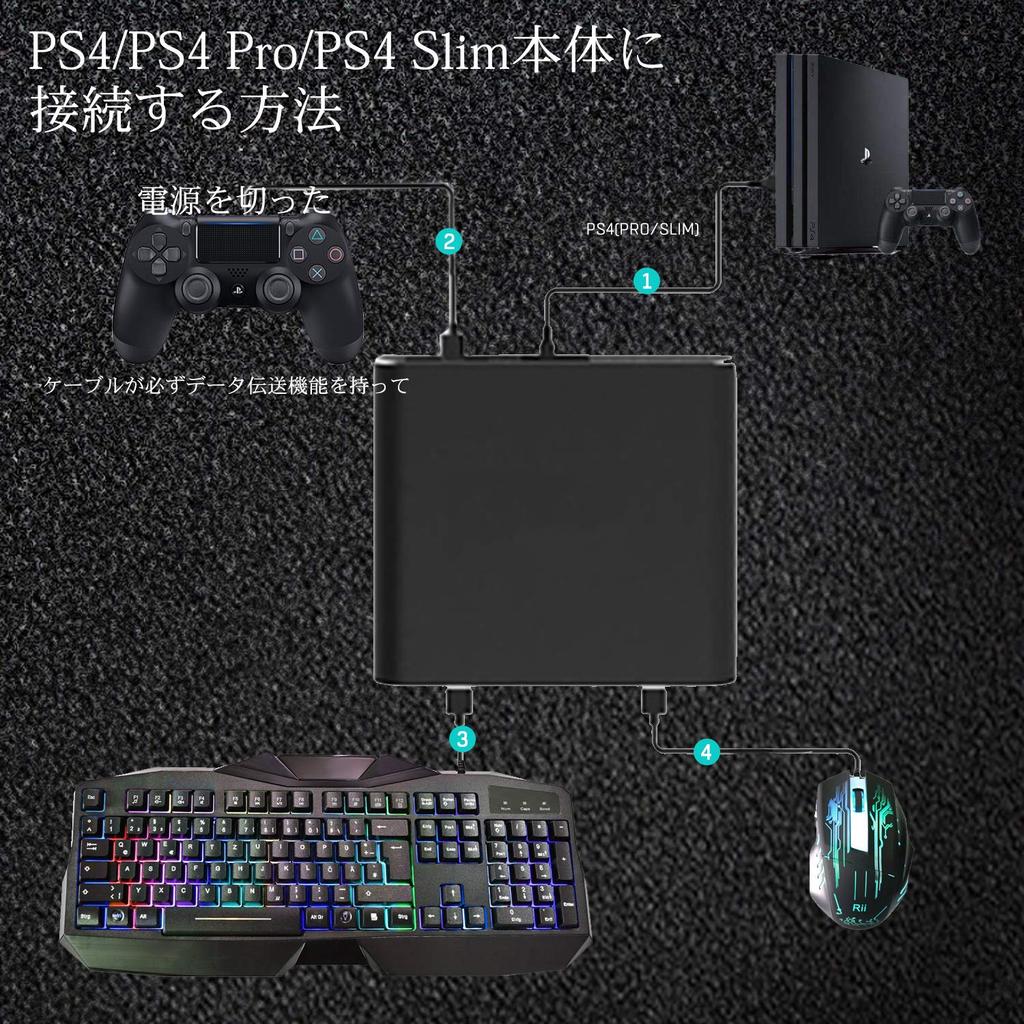
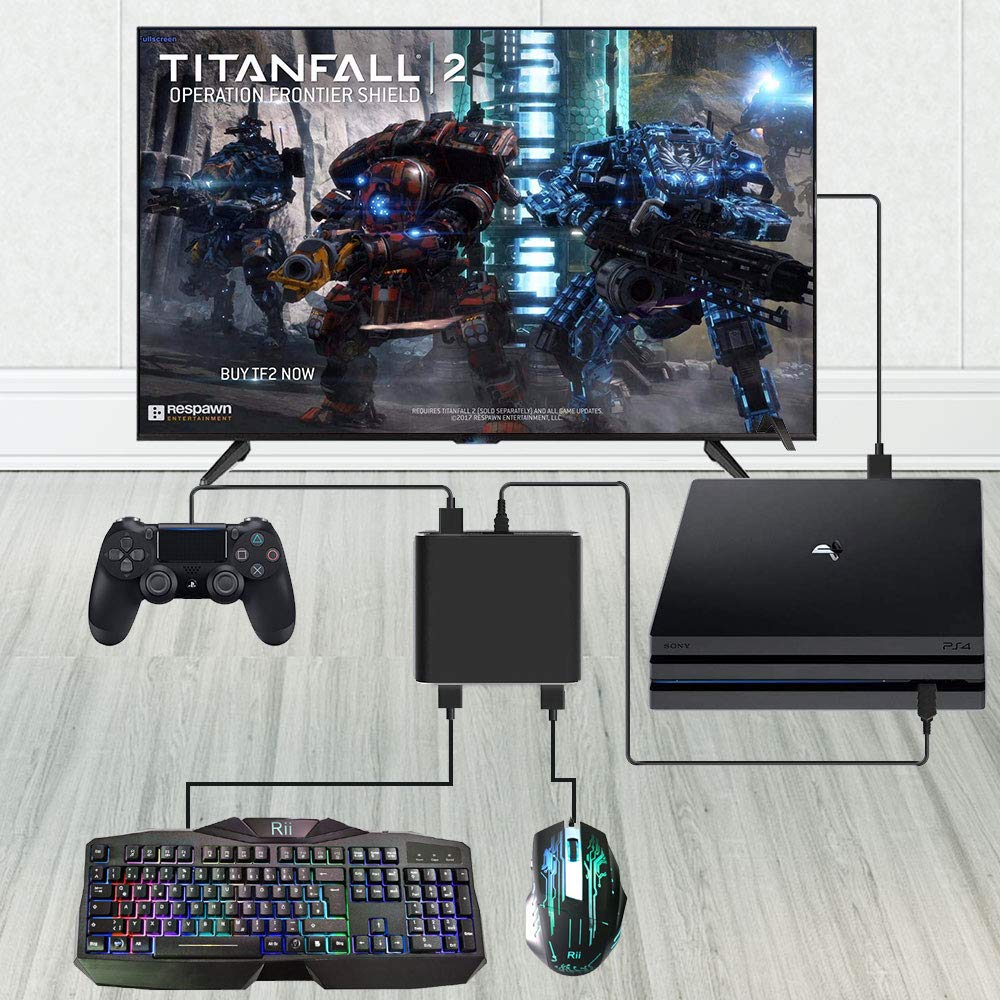
When running on a PS4 system
1. Start up your PS4
2. Connect the keyboard and mouse to the adapter
3. Turn off the power to the PS4 genuine controller. *If the controller's player light is flashing, it means the controller is already turned on and it's no good.
4. Connect the powered-off original PS4 controller to the adapter's driver port using a data cable. Note: The cable must have data transmission capabilities and must be purchased separately.
5. The adapter will pair automatically
6. After pairing is complete, the pairing indicator light will turn on. You can now enjoy using your keyboard and mouse on your PS4.
On Xbox One systems:
1. Turn on your Xbox One
2. Connect the keyboard and mouse to the adapter
3. Turn off the power to your Xbox One original controller. *If the controller's player light is flashing, it means it's already turned on and it's not working.
4. Connect the powered-off Xbox One original controller to the adapter's driver port using a data cable. Note: The cable must have data transmission capabilities and must be purchased separately.
5. The adapter will pair automatically
6. Once pairing is complete, the pairing indicator light will turn on. You can now enjoy your keyboard and mouse on your Xbox One.
"Caution"
*If you want to play in handheld or tabletop mode on the Switch, you will need to purchase a separate USB Type A to USB Type C cable.
*The original controller driver is required for PS4 and Xbox One systems, so please do not remove the controller driver in the game.
*The data cable for connecting PS4 and Xbox One systems is not included and must be purchased separately.
*When using the PS4 and Xbox One genuine controllers as drivers, you cannot use headphones at the same time when they are off.
Adapter LED status
Waiting for pairing → LED flashes red
Pairing is complete → The LED turns red.




![Gaming Keyboard Mouse Set with Dedicated Converter Keyboard Fortnite Keyboard Compatible with RGB Keyboard Mouse Set [With Sticker] One-handed](https://img.joomcdn.net/7e207c9be0b7aa3f51e29583a06277ef7a381a29_100_100.jpeg)